You copied something an hour ago, copied something else since, and now you need the first thing back. That is the moment most people search for clipboard history on Mac, and the answer depends on which macOS you run.
For years the Mac clipboard held exactly one item. Copy something new and the old item was gone. macOS 26 Tahoe changed that with a clipboard view inside Spotlight, but it keeps items for days, not months, and it does not exist at all on Sonoma or Sequoia. This guide shows every way to see your clipboard history on a Mac, step by step, and where a clipboard manager makes sense.
How the Mac clipboard works
The clipboard (macOS calls it the pasteboard) is a single slot in memory. ⌘C or ⌘X puts something in that slot and ⌘V pastes it. When you copy again, the new item replaces the old one. Nothing is written to a history file, so on an older Mac there is no hidden log to dig up.
That slot can hold more than plain text. When you copy from a web page, the clipboard often carries several versions of the same item at once: rich text with fonts and links, plain text, and sometimes HTML. The app you paste into picks the version it understands. This is why pasted text sometimes brings unwanted formatting along, and why images, files and colours can live on the clipboard too.
If you use an iPhone or iPad with the same Apple Account, Universal Clipboard lets you copy on one device and paste on a nearby one. It moves the current item between devices. It does not keep a history either.
See the current clipboard item in Finder
Every version of macOS can show you what is on the clipboard right now:
- Click the desktop or a Finder window so Finder is the active app.
- Open the Edit menu in the menu bar.
- Choose Show Clipboard. A small window shows the current item and its type, such as text or an image.
This is useful for checking what you are about to paste. It is not history: the window shows one item, and it changes the moment you copy something else.
How to see clipboard history on Mac with Spotlight (macOS 26 Tahoe and later)
macOS 26 Tahoe rebuilt Spotlight and added browse views for apps, files, actions and the clipboard. According to Apple's macOS Tahoe announcement, clipboard history is one of those views, which means Mac clipboard history is finally built in.
- Press ⌘Space to open Spotlight.
- Press ⌘4 to switch to the Clipboard view. (⌘1 to ⌘3 open Apps, Files and Actions.)
- Use the arrow keys or type a few letters to filter the list, then choose the item you need.
As MacRumors explains, macOS 26.1 lets you choose how long clipboard history is kept: 30 minutes, 8 hours or 7 days, or you can turn it off. Apple's Spotlight settings page also lists a Clipboard Search option, which decides whether clipboard contents appear in your normal Spotlight results.
Where Spotlight's clipboard history falls short
- Seven days is the maximum. The link you copied two weeks ago is gone, and there is no way to keep a single item longer.
- No pinning. You cannot keep an address, a bank reference or a reply you paste every day at the top of the list.
- Only macOS 26 and later. If your Mac runs Sonoma or Sequoia, or your company holds back updates, the Clipboard view does not exist.
If you mostly need to recover something you copied earlier today, Spotlight on Tahoe is enough and it costs nothing. If you treat the clipboard as a working memory for the whole week or month, keep reading.
How to see clipboard history on older macOS (Sonoma and Sequoia)
On macOS 15 Sequoia, macOS 14 Sonoma and earlier, there is no built-in clipboard history at all. The Show Clipboard window in Finder is the only native view, and it holds one item. Terminal commands like pbpaste print the current clipboard, not past ones.
So if you need macOS clipboard history on these versions, the answer is a clipboard manager: a small app that watches the clipboard and saves each new item to a list on your Mac. From then on, every copy is kept. It cannot recover items copied before you installed it, because macOS never stored them.
Most clipboard managers work the same way. You press a shortcut, a list of recent items appears, you type a few letters to filter, and Return pastes the item where your cursor was. The differences are in how long they keep items, what they do with passwords, whether they sync, and what they cost.
How to get unlimited clipboard history on Mac with MacMemo
MacMemo is a native Mac app that puts a launcher, clipboard history, snippets, AI on your own key, on-device dictation and window snapping behind one shortcut. It runs on macOS 14 Sonoma or later, on Apple Silicon and Intel, so it brings clipboard history to Macs that Spotlight's Clipboard view does not reach. Here is how to set it up and use it.
Set it up
- Install MacMemo and open it. During setup it asks for permission to read the clipboard. Allow it, otherwise macOS will not let any app see what you copy.
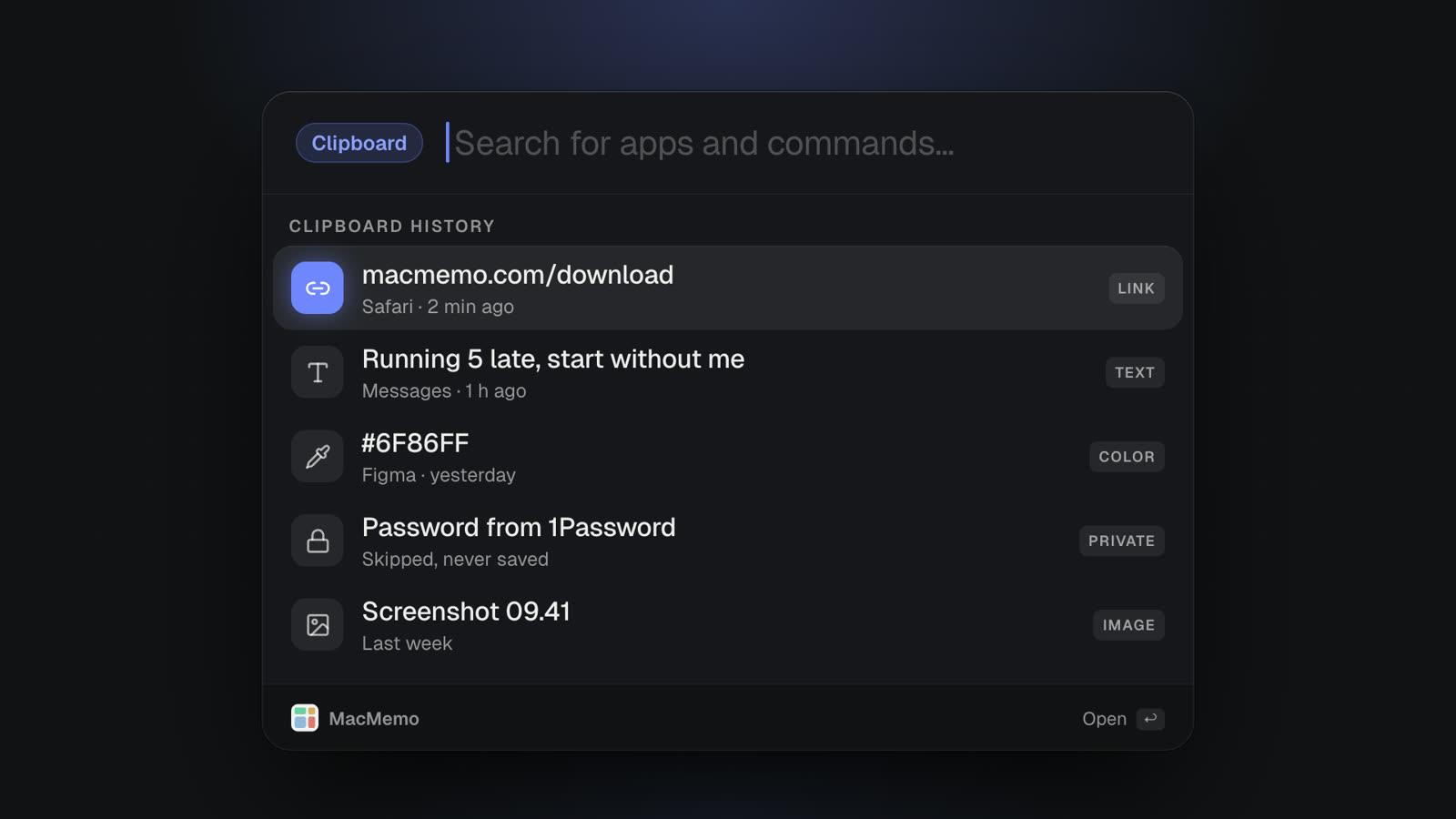
- Copy things as you normally do. Each copy is saved with the app it came from and when you copied it.
- Press ⌘⇧V from any app to open clipboard history. You can change this shortcut in Settings.
Find and paste anything you copied
Type to search the whole history. Each row shows a preview, the source app and how long ago you copied it, and the panel on the right shows the full text or image. The keys you will use most:
- Return pastes the item straight into the app you were in.
- ⌘Return copies it without pasting, so you can paste it somewhere else later.
- ⌘P pins the item so it stays at the top and is kept no matter how old it gets.
- Paste as Plain Text (in the actions list) drops fonts, colours and links, which saves a trip through Paste and Match Style.
- ⌃X deletes a single item you do not want to keep.
- ⌘J (Ask AI About This) sends the item to MacMemo's AI chat, for example to summarize a long paragraph or explain an error message. This uses your own API key.
History keeps text, links, colours, images and copied files. There is no item limit. By default MacMemo keeps history forever, and in Settings you can choose 1 week, 1 month or 1 year instead, or turn history off. Pinned items are never removed by these limits.
Keep passwords and private apps out of it
MacMemo skips anything that password managers mark as concealed or transient, the standard way apps such as 1Password flag a password or one-time code on the clipboard. Those copies never reach your history. You can also add apps to an Ignored apps list, for example a banking app or a remote desktop tool, and nothing copied from them is saved.
History is stored only on your Mac. There is no account and no cloud copy. To clear it, use Delete Unpinned History in Settings, which removes everything except your pinned items.
What else is behind the same shortcut
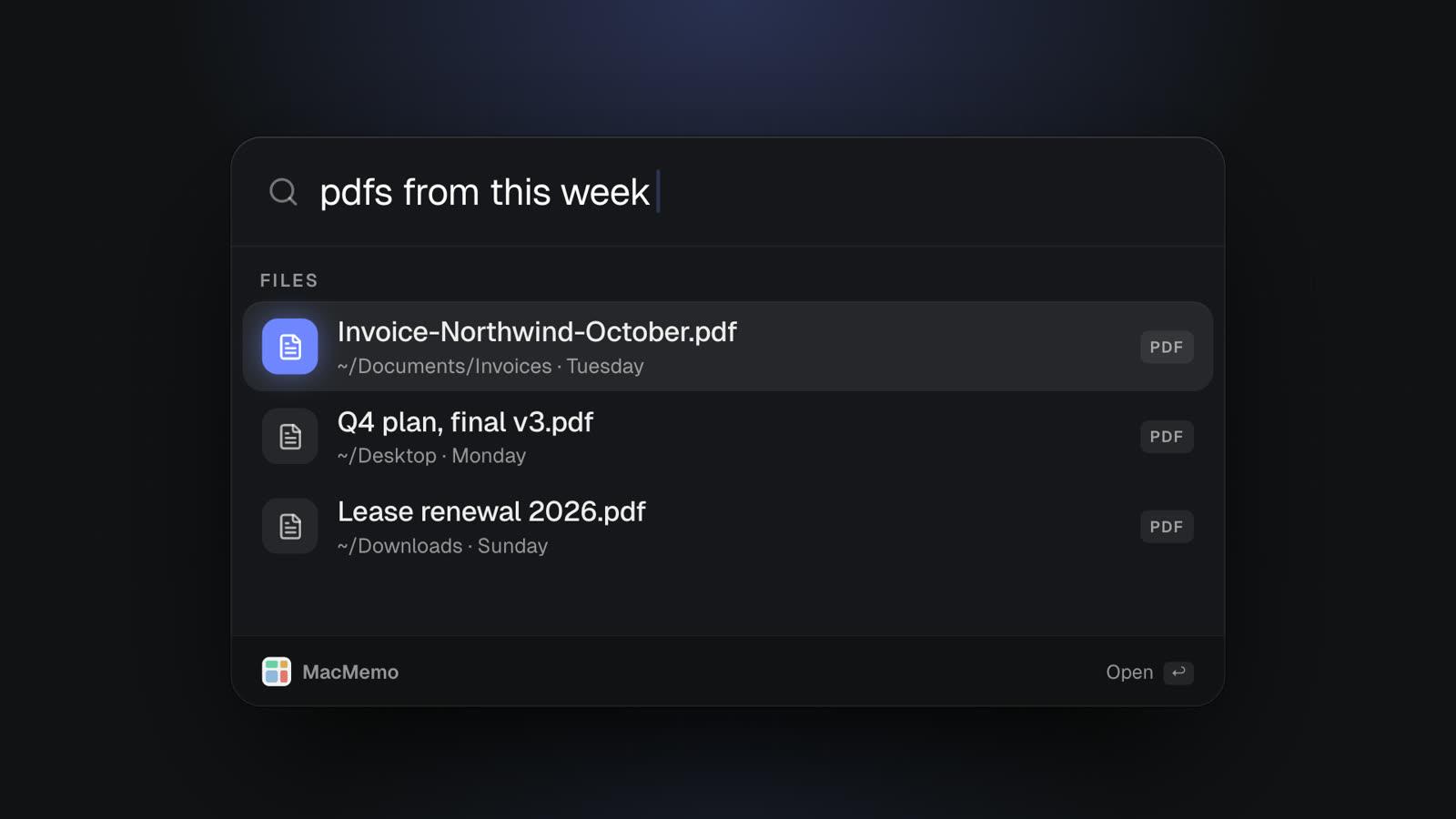
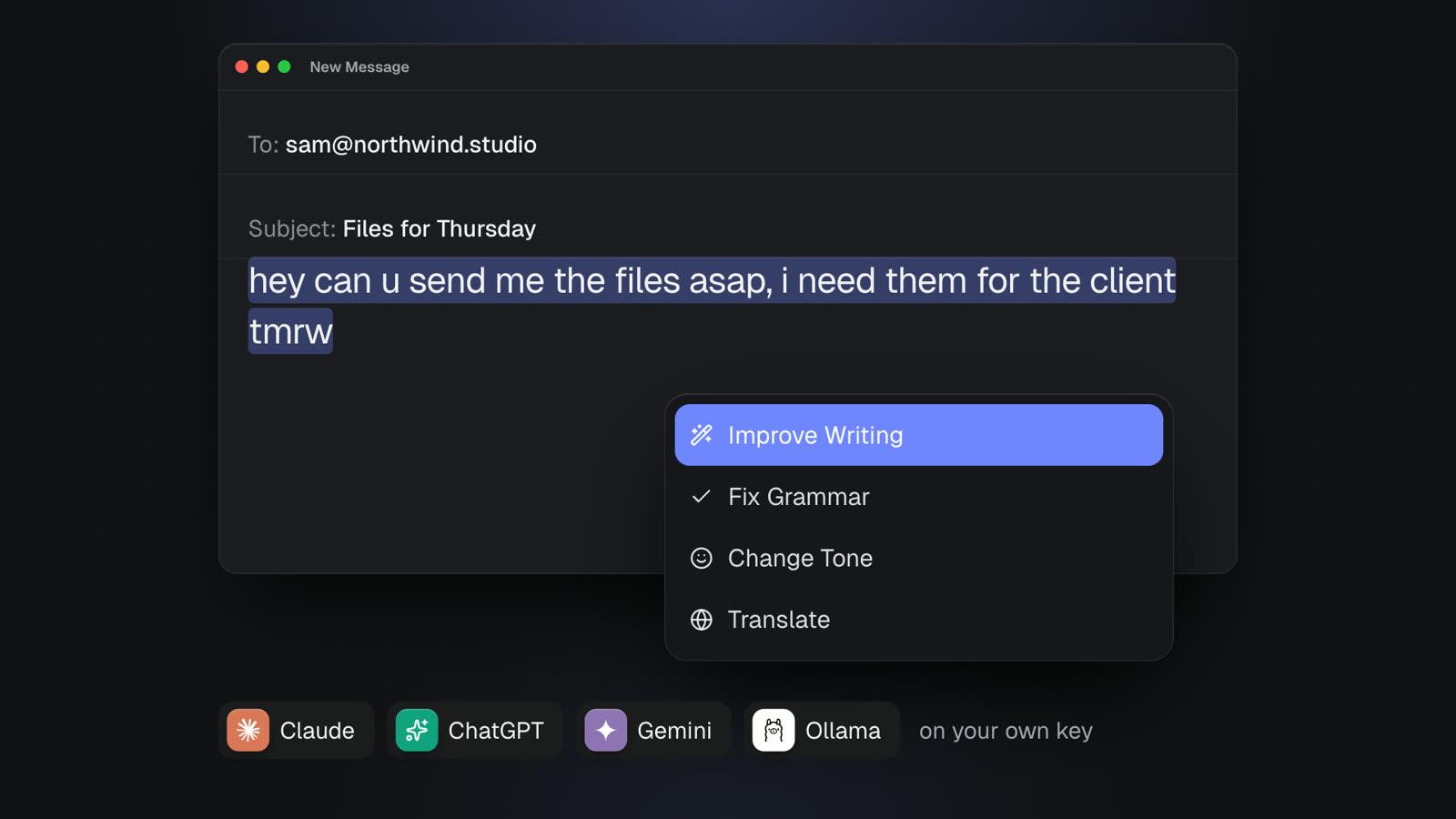
Clipboard history is one part of MacMemo. ⌥Space opens a launcher that finds apps, files and web searches, including plain-English file searches like "pdfs from this week". Snippets expand a short keyword like ;sig into your signature in any app. Select text anywhere and press ⌥⇧Space to fix grammar, change tone or translate it with your own AI key (Claude, ChatGPT, Gemini, local models through Ollama and more). Hold fn to dictate on-device, and snap windows with ⌃⌥ and an arrow key.
Being honest about the trade-offs: MacMemo is a young app from a small team. It is Mac only, it does not sync clipboard history between Macs or to an iPhone, and it is paid from the start: $199 once for three personal Macs with every future update, no subscription, and a full refund within 14 days. If you only want a clipboard manager and nothing else, a free app like Maccy is the cheaper choice. MacMemo makes sense when it also replaces your launcher, text expander, window manager and dictation app.
Best clipboard managers for Mac in 2026, compared
If you have decided you want more than Spotlight's seven days, these are the clipboard managers worth a look. Prices are as of November 2026 and come from each developer's own site.
| App | Price | History kept | Best for | Key limit |
|---|---|---|---|---|
| MacMemo | $199 once, 3 Macs | Forever by default, or 1 week to 1 year | An all-in-one launcher with clipboard, snippets, AI and dictation | Paid only, no sync |
| Spotlight (macOS 26+) | Free, built in | 30 minutes, 8 hours or 7 days | Recovering something from earlier today | 7 days max, no pinning |
| Maccy | Free, open source | Not stated | A light, free clipboard manager | Clipboard only |
| Paste | $2.49 a month or $29.99 a year | Unlimited | Sync across Mac, iPhone and iPad | Subscription |
| Raycast | Free; Pro $10 a month or $96 a year | 3 months free, unlimited on Pro | People already using Raycast | Unlimited history needs Pro |
| Alfred Powerpack | £34, or £59 with lifetime upgrades | 24 hours up to 3 months | Alfred users with workflows | Max 3 months, off by default |
| Pastebot | $39 direct, or $24.99 a year on the App Store | Not stated | Power users who want stacks and filters | Needs macOS 26 Tahoe |
Maccy: the best free clipboard manager for Mac
Maccy describes itself as lightweight, open source and free, and says it will always be free. It lives in the menu bar, opens with a shortcut and lets you search and paste past items. Its site says everything is stored on your computer and that it removes a copied password when your password manager does. It requires macOS 14 Sonoma or later.
Verdict: if all you want is clipboard history on Mac with no cost and no account, start with Maccy. It does one job and stays out of the way.
Paste: best for syncing clipboard history across Apple devices
Paste is the most polished clipboard manager in this list, with a visual timeline of copies and pinboards for things you reuse. Its pricing page lists the Personal plan at $2.49 a month or $29.99 billed yearly, with a seven-day free trial, and every plan includes Paste on Mac, iPhone and iPad with unlimited history and sync across devices signed in to the same Apple Account. A Family plan covers up to six people.
Verdict: the pick if you want your Mac clipboard history on your iPhone too, and you are fine with a subscription.
Raycast: clipboard history inside a launcher
Raycast's pricing page lists clipboard history on the free plan with a history size of 3 months. Pro, at $10 a month or $96 a year, makes it unlimited and adds AI, sync and more. If you already use Raycast as a launcher, its clipboard history is a natural choice. Our Raycast alternatives guide covers what changes when you want those Pro features without a subscription.
Verdict: good if you live in Raycast already, and the free plan's three months is enough for you.
Alfred Powerpack: clipboard history for workflow fans
Alfred's clipboard history is part of the paid Powerpack, which costs £34 for a single license or £59 for Mega Supporter with free lifetime upgrades. According to Alfred's clipboard help page, it saves text, images and file paths, and you choose to keep clips for 24 hours, 7 days, 1 month or 3 months. It is disabled by default for privacy, ignores Keychain Access, 1Password and concealed data, and lets you clear the last 5 or 15 minutes or everything.
Verdict: a fine choice for Alfred users, but the three-month cap rules it out if you want a permanent archive.
Pastebot: a clipboard manager for power users
Pastebot from Tapbots focuses on what you do with copied items: stacks, filters that transform text, blacklists, iCloud sync and Shortcuts and command-line support. Its site lists $39 for a direct purchase with one year of updates (another year of updates is $19), or $24.99 a year or $2.99 a month on the App Store, with a 14-day free trial. Pastebot 3 requires macOS 26 Tahoe or later.
Verdict: worth a look if you transform text a lot, and your Mac already runs Tahoe.
How we picked these clipboard managers
People searching for clipboard history on Mac usually want one of three things: to recover a single lost item, to keep a long searchable archive, or to reuse the same pieces of text every day. We judged each option on what serves those needs:
- How long history is kept, and whether you control it.
- Search and pinning, so old items are findable and favourites stay put.
- Password handling: whether concealed entries from password managers are skipped.
- Where data lives: on your Mac, or synced through a service.
- Price model: free, one-time or subscription, and which macOS versions are supported.
Clipboard history and privacy: what to check
A clipboard manager sees everything you copy, so it is worth thinking about before you install one. Passwords, two-factor codes, addresses and private messages all pass through the clipboard at some point.
- Password skipping. Password managers mark what they copy as concealed or transient. A good clipboard manager respects that and never saves those items. MacMemo, Maccy and Alfred all describe this behaviour.
- Local storage. Check whether history stays on your Mac or syncs through a server. Sync is convenient, but it means another copy of your data elsewhere.
- Ignored apps. Being able to exclude a banking app, a remote desktop session or a work tool keeps sensitive copies out of history entirely.
- Clearing history. You should be able to delete one item, or wipe everything quickly, without hunting through files.
- Clipboard permission. Recent versions of macOS ask before an app reads what other apps copied. If a clipboard manager shows nothing, check its access under System Settings > Privacy & Security.
If you share a Mac or present your screen often, pick a manager with a short retention period, or pin only what you need and clear the rest regularly.
Clipboard tips every Mac user should know
Whatever you use for clipboard history on Mac, a few built-in shortcuts make copying and pasting faster:
- ⌥⇧⌘V pastes and matches the style of the document you are in, in most apps. It is the quick way to drop formatting from copied web text.
- ⌃⇧⌘4 takes a screenshot of a selected area and puts it on the clipboard instead of saving a file. Add ⌃ to ⌘⇧3 for the whole screen.
- ⌘C then ⌥⌘V in Finder moves a file instead of copying it.
- Drag a file into a text field to paste its path in many apps, including Terminal.
- Snippets beat the clipboard for text you type daily. If you paste the same reply, address or code block every day, a text expander that turns ;addr into your address is faster than scrolling history. MacMemo includes snippets with placeholders.
Clipboard not working on Mac? How to fix it
Sometimes ⌘C and ⌘V stop working across every app. The clipboard is run by a background process called pboard, and restarting it fixes most cases:
- Open Activity Monitor from Applications > Utilities.
- Search for pboard, select it and click the stop button, then choose Force Quit. macOS restarts it on its own.
- Try copying and pasting again. If it still fails, restart the Mac.
If only your clipboard manager stops recording, check that it still has clipboard permission in System Settings > Privacy & Security, that history is turned on in its settings, and that the app you are copying from is not on its ignore list.
Which way to see clipboard history on Mac should you choose?
- You are on macOS 26 Tahoe and only need today's copies: use Spotlight's Clipboard view (⌘Space, then ⌘4). Free and already there.
- You are on Sonoma or Sequoia and want something free: install Maccy.
- You want your clipboard on your iPhone and iPad too: Paste, if a subscription is fine.
- You already pay for a launcher: use Raycast's or Alfred's clipboard history and stay in one tool.
- You want unlimited, searchable history plus a launcher, snippets, AI and dictation without a subscription: MacMemo.
If you are also rethinking your launcher, our guides to Spotlight alternatives and Wispr Flow alternatives for dictation go deeper on those parts of the setup. More guides are on the blog.
Clipboard history on Mac: frequently asked questions
Does Mac have clipboard history?
Yes, from macOS 26 Tahoe. Open Spotlight with ⌘Space and press ⌘4 to see the Clipboard view. On macOS 15 Sequoia and earlier there is no built-in history, only the current item, so you need a clipboard manager.
How do I see my clipboard history on a Mac?
On macOS 26 or later, press ⌘Space, then ⌘4. On older versions, Finder's Edit > Show Clipboard shows the last item only. For a full history on any version, install a clipboard manager such as MacMemo (⌘⇧V) or Maccy.
How long does Mac keep clipboard history?
Spotlight on macOS 26.1 lets you keep clipboard history for 30 minutes, 8 hours or 7 days, or turn it off. Clipboard managers can keep it longer: MacMemo keeps it forever by default, and Raycast's free plan keeps 3 months.
Can I recover something I copied yesterday on a Mac?
Only if something was recording it. On macOS 26 with Spotlight's clipboard history set to 7 days, you can find it in the Clipboard view. On older macOS without a clipboard manager installed, it is gone, because macOS never saved it.
What is the best clipboard manager for Mac?
For a free, simple option, Maccy. For syncing with iPhone and iPad, Paste. For unlimited history inside a launcher with snippets, AI and dictation on a one-time price, MacMemo. If you already use Raycast or Alfred, their built-in clipboard history is the easy choice.
Is it safe to use a clipboard manager on Mac?
It can be, if it skips passwords and keeps data on your Mac. Look for one that ignores concealed entries from password managers, lets you exclude apps, and stores history locally. MacMemo does all three and has no account.
How do I clear clipboard history on Mac?
In Spotlight on macOS 26.1, you can turn clipboard history off in Spotlight settings. In MacMemo, use Delete Unpinned History in Settings, or delete single items with ⌃X. To clear only the current clipboard, copy something harmless like a single space.
Where is the clipboard on a Mac?
The clipboard is not a file or folder you can open. It is held in memory by macOS. You can view the current item with Finder's Edit > Show Clipboard, and past items with Spotlight's Clipboard view on macOS 26 or a clipboard manager.
Start keeping your clipboard history
If you are on macOS 26, try Spotlight's Clipboard view today: ⌘Space, then ⌘4. If you find yourself wishing it remembered last week, or you are on an older macOS, a clipboard manager is the fix, and it starts working the moment you install it.