If you are reading about Spotlight alternatives, Spotlight has probably let you down at least once this week. A file you know exists does not show up. An app takes a beat too long to appear. You type a name and get a web suggestion before the document you wanted. Or you simply want your launcher to do more than open things.
This guide is for Mac users in that spot. It covers what Spotlight does well since macOS 26 Tahoe, where it still falls short, how to fix the most common indexing problems before you replace anything, and which launchers are worth moving to. Prices are as of November 2026.
We make MacMemo, so weigh our pick accordingly. Every other app here was checked against its own site in November 2026.
Spotlight alternatives at a glance
| App | Price | Best for | Key strength | Key limit |
|---|---|---|---|---|
| MacMemo | $199 once, 3 Macs | Replacing several small utilities with one app | Launcher, clipboard, snippets, BYOK AI, dictation and windows built in | Young app, no extension store, no free tier |
| Raycast | Free; Pro $10/mo or $96/yr | People who want extensions for everything | Thousands of community extensions | AI and cloud sync need a paid plan |
| Alfred | Free; Powerpack £34 or £59 | Long-time power users who script | Workflows and deep customisation | Clipboard, snippets and workflows need the Powerpack |
| LaunchBar | Paid license, free trial | Keyboard purists who browse files | Abbreviation learning and file actions | Price not shown on its product page |
| Sol | Free (MIT) | A minimal, open-source launcher | Free, simple, fast | Smaller feature set, no AI |
| HoudahSpot | $39 | Serious file search | Multi-criteria search, including file contents | Not an app launcher |
What Spotlight does well since macOS 26 Tahoe
Spotlight is better than its reputation. In macOS 26 Tahoe, Apple rebuilt a lot of it. According to Apple's macOS Tahoe announcement, results for files, folders, events, apps and messages are now listed together and ranked by relevance, and new filters narrow a search to one type of item, such as PDFs or Mail messages.
The bigger change is actions. Apple says you can take hundreds of actions directly from Spotlight, like sending an email, creating a note or playing a podcast, and run shortcuts or menu bar actions from the app you are in. Spotlight also added quick keys, short strings of characters that jump straight to an action, and browse views for apps, files and clipboard history.
Clipboard history is the one many people missed. As MacRumors explains, you can jump into the Apps, Files, Actions and Clipboard browse views with ⌘1 to ⌘4 once Spotlight is open, and in macOS 26.1 you can choose to keep clipboard history for 30 minutes, 8 hours or 7 days, or turn it off.
If all you need is to open apps, find a recent file and recall this morning's clipboard, Spotlight on macOS 26 or later may now be enough. It is free and already installed.
Where Spotlight still falls short
People still look for a mac Spotlight alternative for a few reasons.
- Missing results after updates. Apple Community threads after the macOS 26 upgrade describe Spotlight no longer finding desktop or cloud files until the index was rebuilt. When the index is wrong, Spotlight feels broken, even though the fix is usually simple (see below).
- Short clipboard memory. Seven days is the longest option for Spotlight's clipboard history. If you want to find a link you copied last month, or pin something permanently, you need another tool. Our guide on how to see clipboard history on Mac walks through the options.
- No text expansion. Spotlight has no snippets. You cannot type ;sig and get your email signature.
- No bring-your-own AI. There is no way to send selected text to the AI provider and model you choose with your own key.
- No window snapping or device switching from the search bar. You cannot type a word to send audio to your AirPods or move a window to the left half.
- Clutter you did not ask for. Spotlight mixes in content from apps and the system, and Apple's settings page includes a Show Related Content option that allows content from Apple partners to appear when searching. You can trim these, but many people never do.
Spotlight is a search box with some actions. Many people want a command bar that also handles text, clipboard and windows.
Fix Spotlight first: tidy results and rebuild the index
Before you install anything, spend five minutes here. Most launchers that search files, MacMemo included, use the Mac's Spotlight index. If the index is damaged, a new launcher will miss the same files.
Trim what Spotlight shows
Open System Settings and click Spotlight. Apple's Spotlight settings page for macOS 26 lists the controls: Results from Apps and Results from System let you turn categories on or off, Show Related Content controls content from Apple partners, Clipboard Search decides whether clipboard contents appear in results, and Search Privacy excludes specific files and folders. Turning off categories you never use is the fastest way to make results feel less noisy.
Rebuild the Spotlight index
If files are missing, Apple's support article on rebuilding the Spotlight index describes the steps:
- Choose Apple menu, then System Settings, then click Spotlight (or Siri & Spotlight on older versions) in the sidebar.
- Scroll down and click Search Privacy (or Spotlight Privacy).
- Drag the disk (such as Macintosh HD) or folder you want to reindex into the list, or click the add button (+) and choose it.
- Wait a few seconds, select the disk or folder you just added, and click the remove button to take it off the list.
- Click Done and quit System Settings. Spotlight reindexes that disk or folder.
Reindexing a whole drive can take a while, so leave the Mac plugged in. If you see permissions errors when adding a folder, Apple notes your user account may not own some items, and links to a guide for changing permissions.
Change the ⌘Space shortcut so a replacement can take over
If you want a new launcher on ⌘Space, Spotlight has to give it up first. Apple's guide to changing a keyboard shortcut on macOS 26 gives the path:
- Choose Apple menu, then System Settings, then click Keyboard in the sidebar (you may need to scroll).
- Click Keyboard Shortcuts, then select Spotlight in the list.
- Double-click the Spotlight shortcut and press a new key combination you will not hit by accident.
- Open your new launcher's settings and assign it ⌘Space, if it lets you pick its hotkey.
You do not have to do this. MacMemo uses ⌥Space out of the box, so it sits next to Spotlight without a conflict.
How we picked these Spotlight alternatives
People searching for something better than Spotlight usually want one of three things: faster and more reliable app and file results, more actions from one shortcut, or better file search on its own. We judged each app on:
- Launching and search. Does it find apps and files from a few typed letters, and does it learn what you use?
- What it does beyond search. Clipboard history, snippets, calculator, window management, system controls, AI.
- Price and model. One-time license, subscription, or free, and what is held back behind a paid plan.
- Native feel and privacy. Whether it is a Mac app first, and where your data goes.
- Verifiable claims. Every competitor fact below comes from the vendor's own site, checked in November 2026. If we could not confirm something, we left it out.
1. MacMemo: the best Spotlight alternative for Mac if you want one app
MacMemo is a native Swift launcher for macOS 14 Sonoma or later, on Apple Silicon and Intel. One shortcut, ⌥Space, opens a bar that searches apps, files, folders and the web in one list. The difference from Spotlight is everything else that bar can do: clipboard history, snippets, AI on any selected text with your own key, on-device voice dictation, window snapping and device controls.
Search that understands plain English
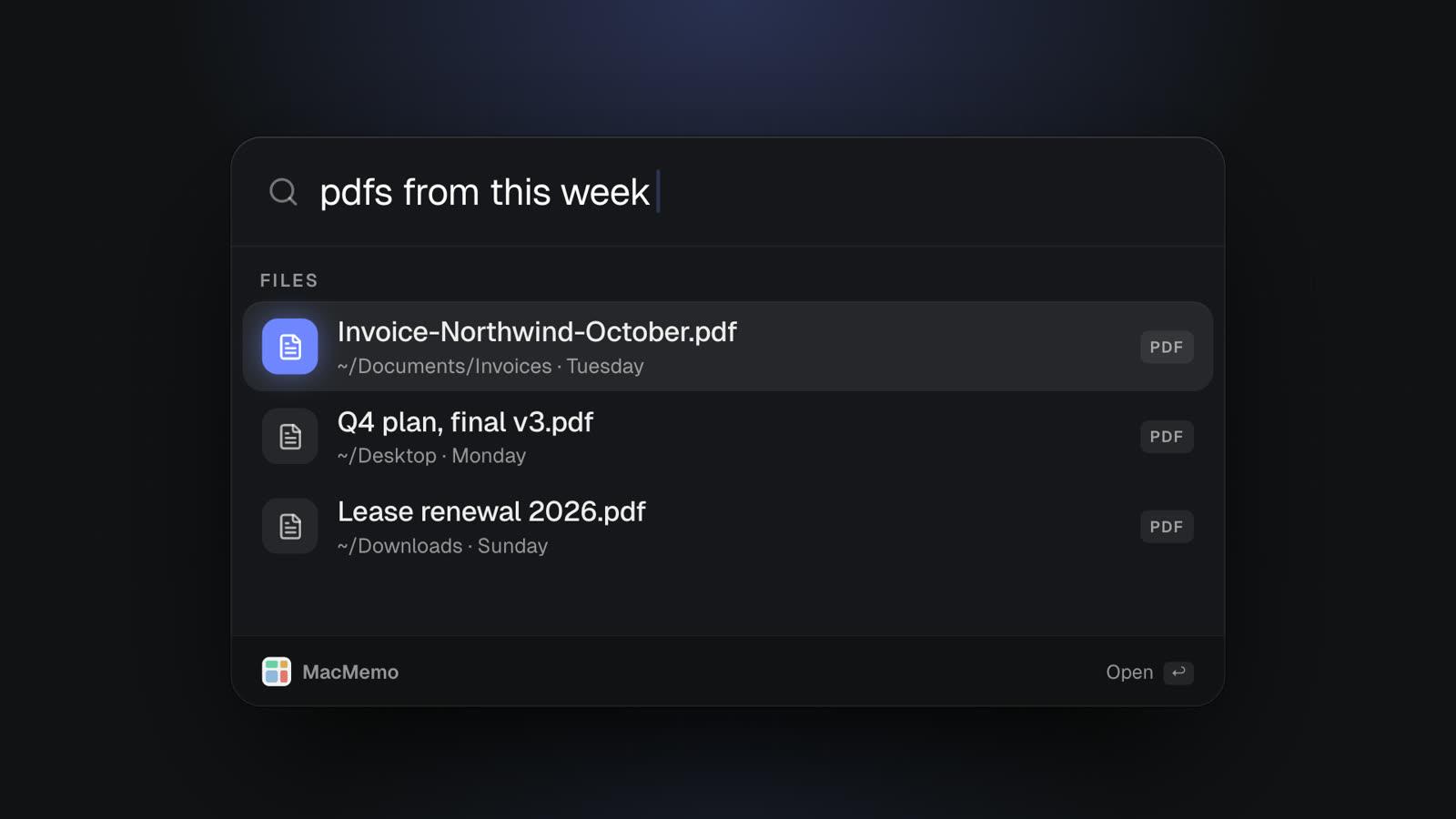
Fuzzy matching works on initials and partial words, so "vsc" finds Visual Studio Code, and results you open often and recently rank higher. For files, you can type the way you think: "pdfs from this week", "videos over 1gb", "invoice screenshots today", "files above 10mb" or "documents last month". MacMemo turns that into filters for file type, size and date.
To be clear about how this works: MacMemo's file search uses the Mac's own Spotlight index, and it matches file names, not the text inside files. That keeps it fast and private, but it means a broken index affects MacMemo too, and it will not find a PDF by a sentence buried on page 12. If content search is what you need, read the HoudahSpot section below.
Clipboard, snippets and quick tools
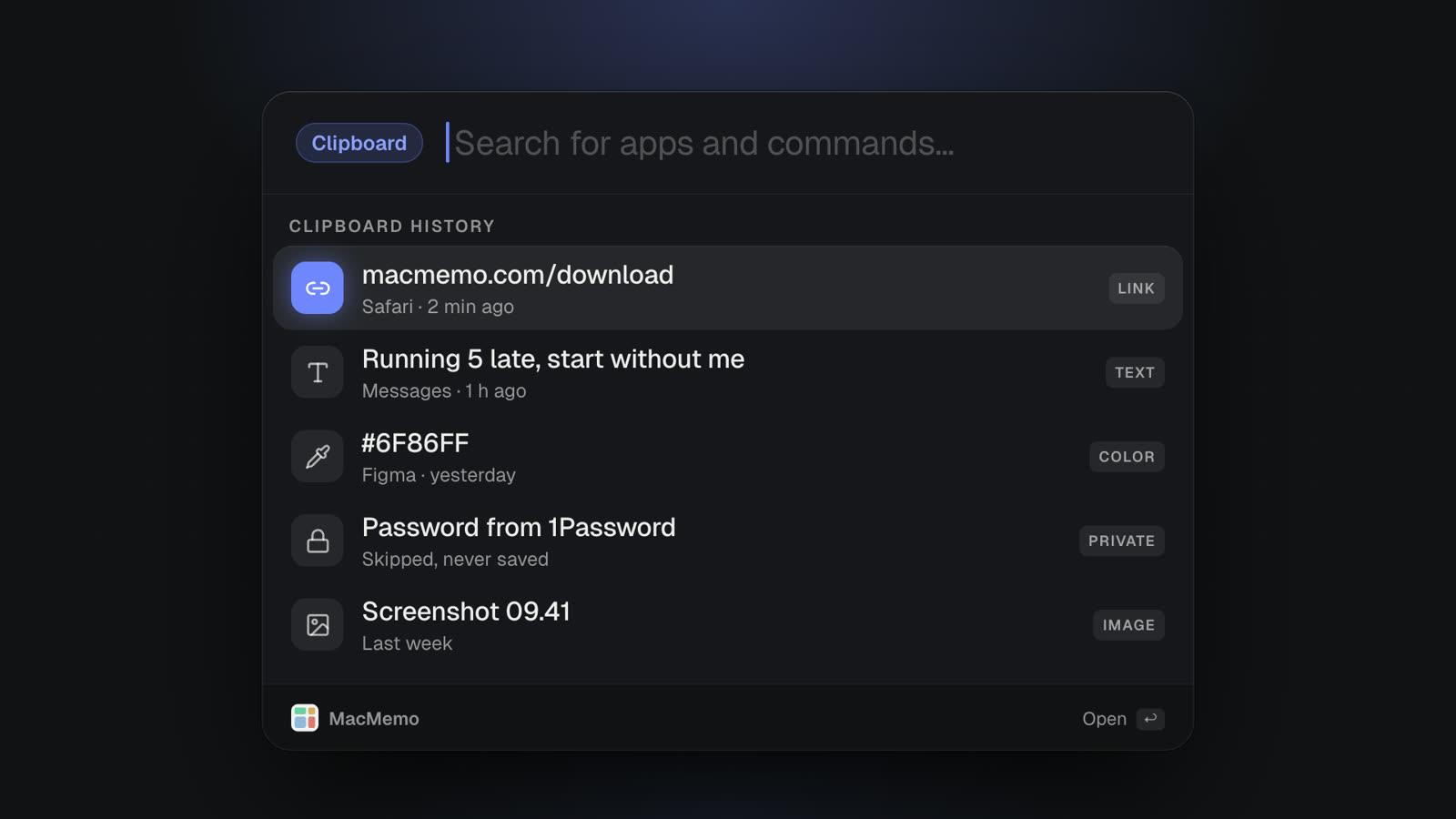
Clipboard history (⌘⇧V by default) keeps text, links, colours and images with no item limit, is searchable, and lets you pin items. It skips content that password managers mark as concealed or transient, so passwords are not saved. Compare that with Spotlight's maximum of seven days.
Snippets expand in any app when you type a keyword like ;sig, with placeholders. The bar also handles quicklinks (your own sites and searches behind a short word), script commands that run your own shell scripts with arguments, an emoji and symbols picker, quit or hide all apps, a system monitor to find what is slowing the Mac and quit it, and screenshots. The calculator does math as you type, unit conversions like km to miles, and live currency rates such as "1840 usd in eur".
AI on your own key, and dictation that stays on the Mac
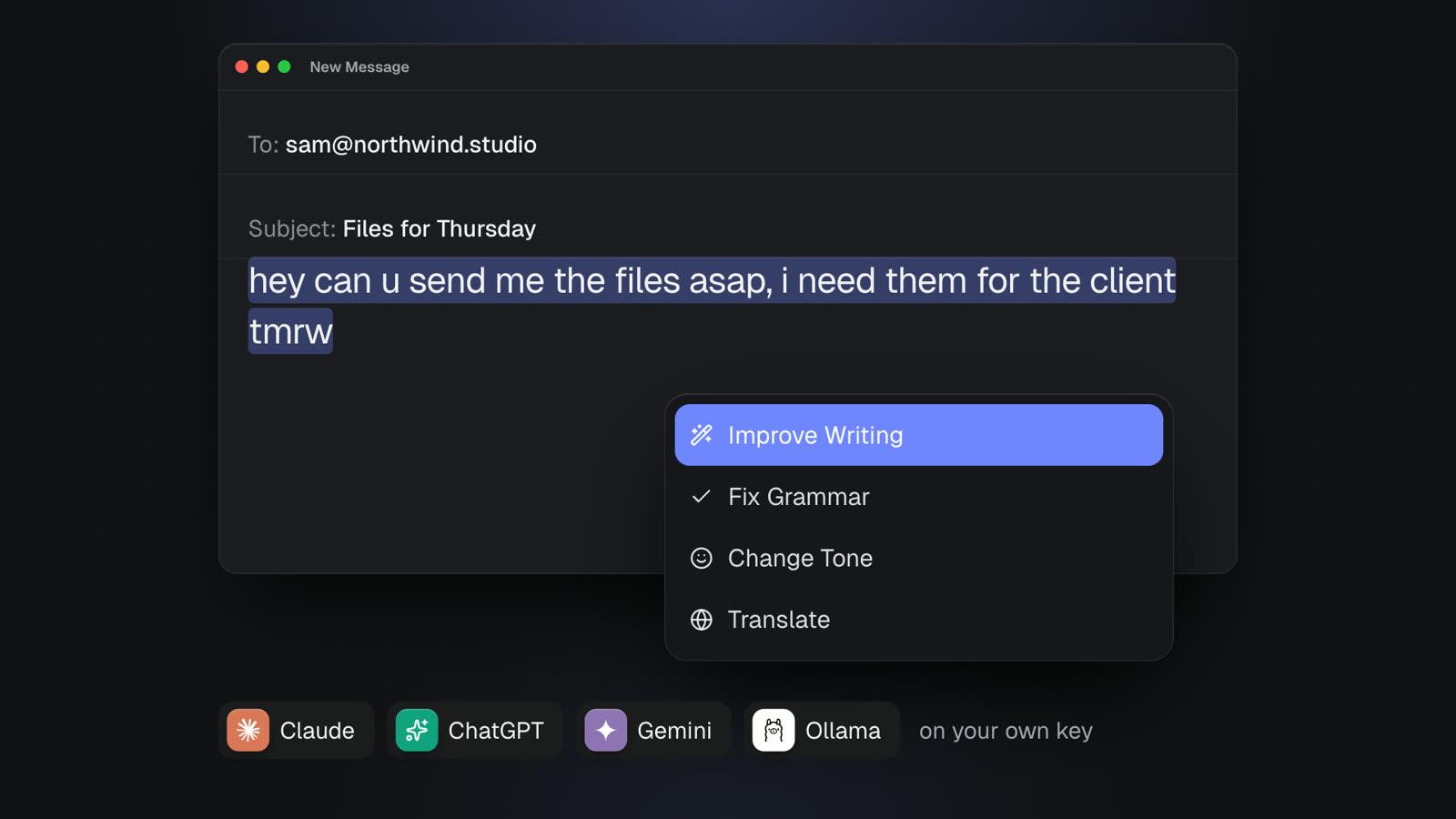
Select text in any app, press ⌥⇧Space and pick a command: Improve Writing, Fix Spelling and Grammar (which replaces the text in place), Make Shorter, Change Tone, Summarize, Translate to English, Draft a Reply, Explain Code and more. You can write your own commands and give each one its own model. Ask About Screen attaches the window you were in, which is handy for explaining an error, and AI chat history is saved on the Mac and searchable with ⌘Y.
AI works with Anthropic, OpenAI, Google Gemini, OpenRouter, Groq, Mistral, DeepSeek, or local models through Ollama with no key at all. Keys are stored in the macOS Keychain and requests go straight from your Mac to the provider, never through MacMemo's servers. There are no AI credits to buy.
Dictation works by holding fn, speaking and letting go. Text is typed wherever the cursor is. It runs on-device and offline: on macOS 26 and later it uses Apple's SpeechAnalyzer engine, on older versions Apple's on-device recognizer. It removes filler words, supports "scratch that", spoken line breaks and a custom dictionary. Accuracy depends on Apple's speech models, and there is no cloud model option.
Windows and devices from the same bar
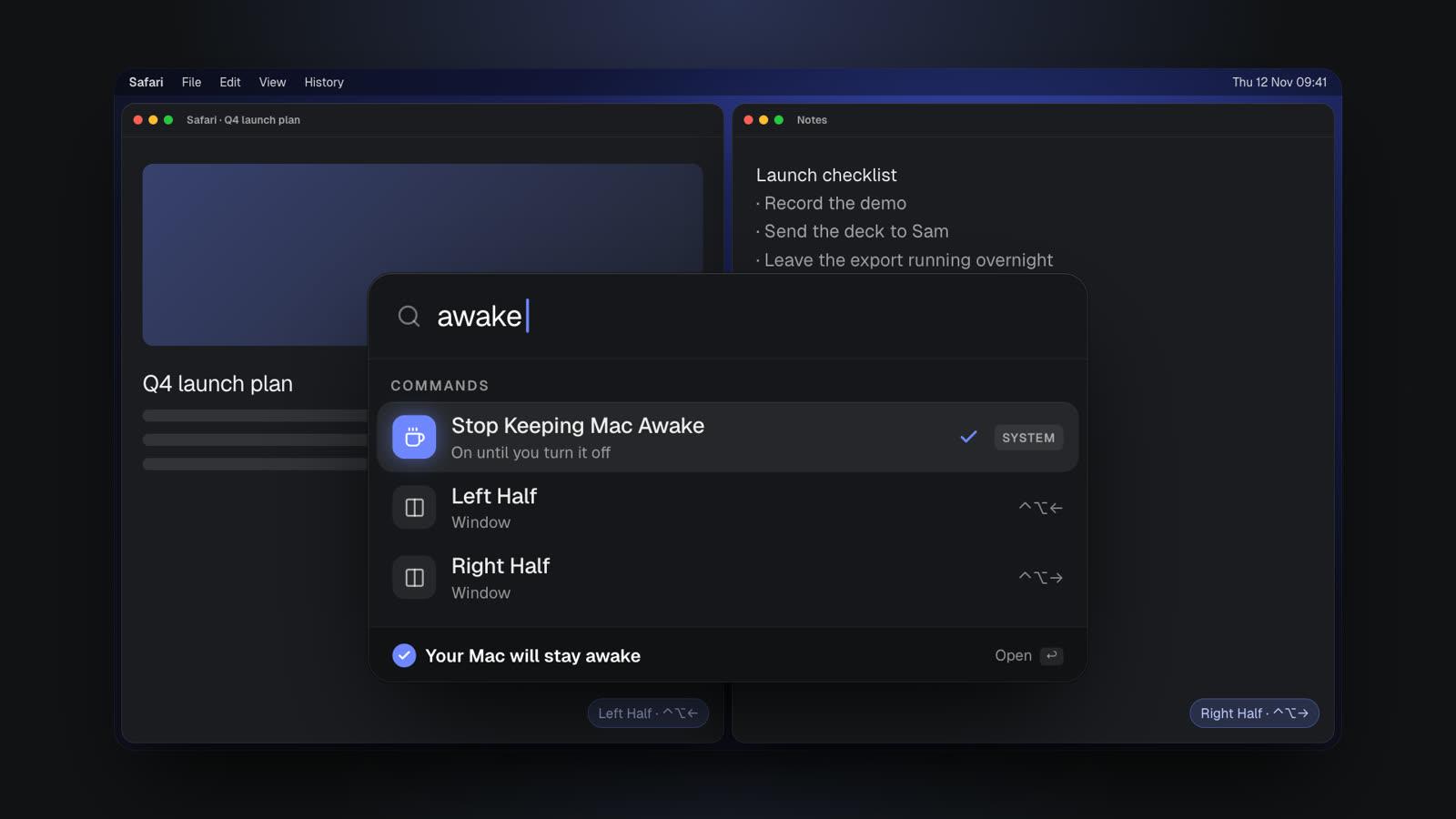
Window snapping covers halves (⌃⌥ with the arrow keys), maximize (⌃⌥↩), thirds, two-thirds, quarters, center, almost maximize, reasonable size and move to next display. There are no saved custom layouts. From the bar you can also switch audio output or input (type "airpods"), connect Bluetooth devices, join Wi-Fi or an iPhone hotspot, mute the mic, set an exact volume, toggle dark mode, keep the Mac awake until you turn it off, and pick any pixel's colour as hex.
Pricing
MacMemo costs $199 once for a lifetime license that covers 3 personal Macs and includes every future update. There is no subscription, and there is a full refund within 14 days. There is no free tier and no trial. Details are on the pricing section.
Pros and cons
- Pro: replaces several utilities (launcher, clipboard manager, text expander, window manager, dictation app, keep-awake tool) with one native app.
- Pro: one payment, no AI credits, and AI requests go directly to your provider.
- Pro: no account needed; clipboard history, chats and settings stay on the Mac.
- Con: a young product from a small team.
- Con: no third-party extension store or community extensions, which is Raycast's big advantage.
- Con: Mac only, no cloud sync between Macs, and AI needs your own API key or Ollama.
- Con: paid from day one, with the 14-day refund as the safety net.
Verdict: if you want a Spotlight replacement on Mac that also handles the jobs Spotlight never will, and you prefer paying once to paying monthly, MacMemo is the most complete single app here. See the full list on the features page.
2. Raycast: the extension powerhouse
Raycast describes itself as a collection of productivity tools inside an extendable launcher. Built in, you get clipboard history, quicklinks, a calculator, snippets, window management, file search, notes, calendar access, system controls and an emoji picker. Its real draw is the Store, where its site says there are thousands of community extensions, and you can build your own.
On Raycast's pricing page, the individual plan is free and includes the core features, extensions and 3 months of clipboard history. Pro costs $10 a month or $96 a year and adds Raycast AI with 500 credits a month, unlimited clipboard history, cloud sync, dictation and custom themes. Plus is $20 a month ($192 a year) and Max is $50 a month ($480 a year), mainly for more AI credits. Raycast's homepage currently states that macOS Tahoe and Apple Silicon are required, so check that against your Mac.
- Pros: huge extension catalog, generous free plan, cloud sync on paid plans, team features.
- Cons: AI runs on credits from a subscription, the free plan caps clipboard history at 3 months, and the stated requirements leave out Intel Macs and older macOS.
Verdict: on Spotlight vs Raycast, Raycast wins whenever there is an extension for a service you use daily. If you are weighing it up in depth, our Raycast alternatives guide compares it with the rest of the field.
3. Alfred: the veteran with deep workflows
Alfred has been the classic answer to "what is better than Spotlight" for years. Its site says the core is free to download and use forever, covering app launching and file searching. It runs on macOS 10.14 or later, on Intel and Apple Silicon, and the current download is Alfred 5.
The paid Powerpack adds most of what people buy Alfred for: Workflows, Clipboard History (text, images and file paths), Snippets with auto-expansion, keyboard file navigation, terminal integration, custom themes and settings sync through a file syncing service. A Single License costs £34 and a Mega Supporter license with free lifetime upgrades costs £59. Alfred's site also announces Alfred 6 for this autumn and says Powerpack purchases now include a free upgrade to it.
- Pros: mature, very scriptable, supports older macOS, one-time pricing in pounds.
- Cons: the free version is mostly a launcher; clipboard, snippets and workflows need the Powerpack; no built-in AI listed among Powerpack features.
Verdict: in Spotlight vs Alfred, Alfred is the better pick for people who like building their own automations and want to pay once. Version 6 is close, so watch for what it adds.
4. LaunchBar: the adaptive launcher for keyboard purists
LaunchBar, from Objective Development (the makers of Little Snitch), is described on its site as an adaptive app launcher and document browser. You open apps, files and bookmarks with short abbreviations it learns over time. It can create calendar events and reminders, look up contacts, browse the file system, copy, move or rename items, run web searches with live suggestions, and includes clipboard history, a snippet manager, a calculator and a script runner.
The current version is LaunchBar 6. Its product page does not show a price, and the Objective Development shop lists single and family licenses without amounts shown, so check the shop before you buy. The site does say that after the 30-day trial, LaunchBar can keep being used for free, with occasional suggestions to take a short break.
- Pros: excellent file browsing and actions from the keyboard, long track record, usable indefinitely after the trial.
- Cons: pricing is not shown on its product page, no AI features listed, and the interface takes time to learn.
Verdict: a strong mac Spotlight alternative for people who move and rename files all day and want to do it without touching Finder.
5. Sol: the best free Spotlight alternative
Sol is an open-source macOS launcher that its site calls free and focused on simplicity and speed. Its GitHub repository lists the MIT license and a macOS 14.0 minimum. You can install it from GitHub releases or with Homebrew (brew install --cask sol).
Sol covers app and file search, an emoji picker, a calculator, window resizing, clipboard history, calendar events, browser bookmarks, quick notes, a process killer, AppleScript commands and developer helpers like UUID generation.
- Pros: free and open source, light, a surprising number of built-ins.
- Cons: no AI or dictation, no extension store, maintained as a smaller open-source project.
Verdict: the best free Spotlight alternative for a cleaner launcher. Start here if you do not want to pay.
6. HoudahSpot: for people who mainly want better file search
Some people searching for a Spotlight replacement on Mac do not need a launcher at all. They need to find files. HoudahSpot is an advanced file search tool that, in its own words, builds on Spotlight's fast indexing. It adds multi-criteria search by name, content, tags, dates and size with boolean operators, regular expressions, reusable templates, Quick Look previews with text snippets, customizable result columns and CSV export.
HoudahSpot 6 costs $39 for a single-user license ($19 to upgrade from an earlier version), with a free trial that includes all features plus occasional messages and delays, and a 15-day money-back guarantee. It requires macOS 10.14 Mojave or newer and runs on Intel and Apple Silicon.
- Pros: searches file contents and metadata in far more detail than Spotlight's search bar, works with your existing index.
- Cons: not a launcher, and because it relies on Spotlight's index, a broken index needs fixing first.
Verdict: pair HoudahSpot with any launcher on this list if your job involves digging through large folders of documents. It fills the gap MacMemo's name-based file search leaves.
Spotlight vs MacMemo: head to head
| Spotlight (macOS 26 and later) | MacMemo | |
|---|---|---|
| Price | Free, built in | $199 once, 3 Macs |
| Default shortcut | ⌘Space | ⌥Space |
| App and file search | Yes, with type filters | Yes, with fuzzy matching and plain-English filters for type, size and date |
| Searches inside files | Yes, through the index | No, matches file names |
| Clipboard history | Up to 7 days (macOS 26.1) | No item limit, searchable, pinning |
| Snippets | No | Yes, with placeholders |
| Actions | Hundreds of app actions, quick keys | Quicklinks, script commands, system and device controls |
| AI on selected text | No bring-your-own-key option | Yes, your own key or Ollama |
| Voice dictation | Not part of Spotlight | Hold fn, on-device |
| Window snapping | No | Halves, thirds, quarters, next display |
The honest summary: Spotlight is the better pure system search, because it looks inside files and is free. MacMemo is the better command bar, because it covers clipboard, snippets, AI, dictation and windows. Since they use different shortcuts, plenty of people run both.
Which Spotlight alternative should you choose?
- You want one app instead of five, and to pay once: MacMemo. Launcher, clipboard, snippets, AI on your own key, dictation and window snapping together.
- You live in third-party services and want an extension for each: Raycast.
- You build your own automations and want a mature, scriptable tool: Alfred with the Powerpack.
- You spend your day moving, renaming and browsing files by keyboard: LaunchBar.
- You want a free, open-source Spotlight alternative: Sol.
- You mostly want to find documents by their contents: HoudahSpot, alongside Spotlight or any launcher.
- Spotlight mostly works but misses files: rebuild the index first. It may be all you need.
If dictation or writing help is the real reason you are shopping, our guides to Wispr Flow alternatives and Grammarly alternatives for Mac go deeper on those categories. More comparisons live on the MacMemo blog.
Frequently asked questions
What is the best Spotlight alternative for Mac?
It depends on what you want beyond search. MacMemo is the best all-in-one pick if you want clipboard history, snippets, AI with your own key, dictation and window snapping in one paid-once app. Raycast is best for extensions, Alfred for scripted workflows, and Sol is the best free option.
Is there a free Spotlight alternative?
Yes. Sol is free and open source under the MIT license. Raycast has a free individual plan, and Alfred's core launcher is free, with clipboard, snippets and workflows in the paid Powerpack.
Spotlight vs Alfred: which is better?
Spotlight is free and searches inside files through the system index. Alfred adds workflows, clipboard history, snippets and keyboard file navigation through its Powerpack, which costs £34 for a single license as of November 2026. If you script your Mac, Alfred is the better fit.
Spotlight vs Raycast: what is the difference?
Spotlight is built into macOS and focuses on search plus app actions. Raycast is an extendable launcher with thousands of community extensions, and its Pro plan ($10 a month) adds AI, unlimited clipboard history and cloud sync. Raycast's homepage lists macOS Tahoe and Apple Silicon as requirements.
How do I replace Spotlight's ⌘Space shortcut?
Open System Settings, click Keyboard, then Keyboard Shortcuts, and select Spotlight. Double-click the shortcut and press a different combination. Then assign ⌘Space in your new launcher's settings. MacMemo uses ⌥Space by default, so you can also keep both.
Why is Spotlight not finding my files?
Usually the index is incomplete or damaged, which is common after a major macOS update. Add your disk to Spotlight's Search Privacy list in System Settings, wait a few seconds, remove it, and let Spotlight reindex. Large drives can take a while.
Does MacMemo search inside files?
No. MacMemo's plain-English file search uses the Mac's Spotlight index to filter by type, size and date, but it matches file names, not the text inside files. For content search, Spotlight itself or HoudahSpot is the better tool.
Can I use Spotlight and another launcher at the same time?
Yes, as long as they use different shortcuts. Spotlight defaults to ⌘Space and MacMemo to ⌥Space, so they do not clash. Many people keep Spotlight for content search and use a launcher for everything else.
Still have questions about MacMemo specifically? The MacMemo FAQ covers licensing and setup, and you can request a feature if something you rely on in another launcher is missing.